

Step 1: Set Your Default Configuration
The image below shows the Auto Snipe Configuration Menu on Ethereum. BSC will have a similar menu with some differences that will be highlighted throughout this page.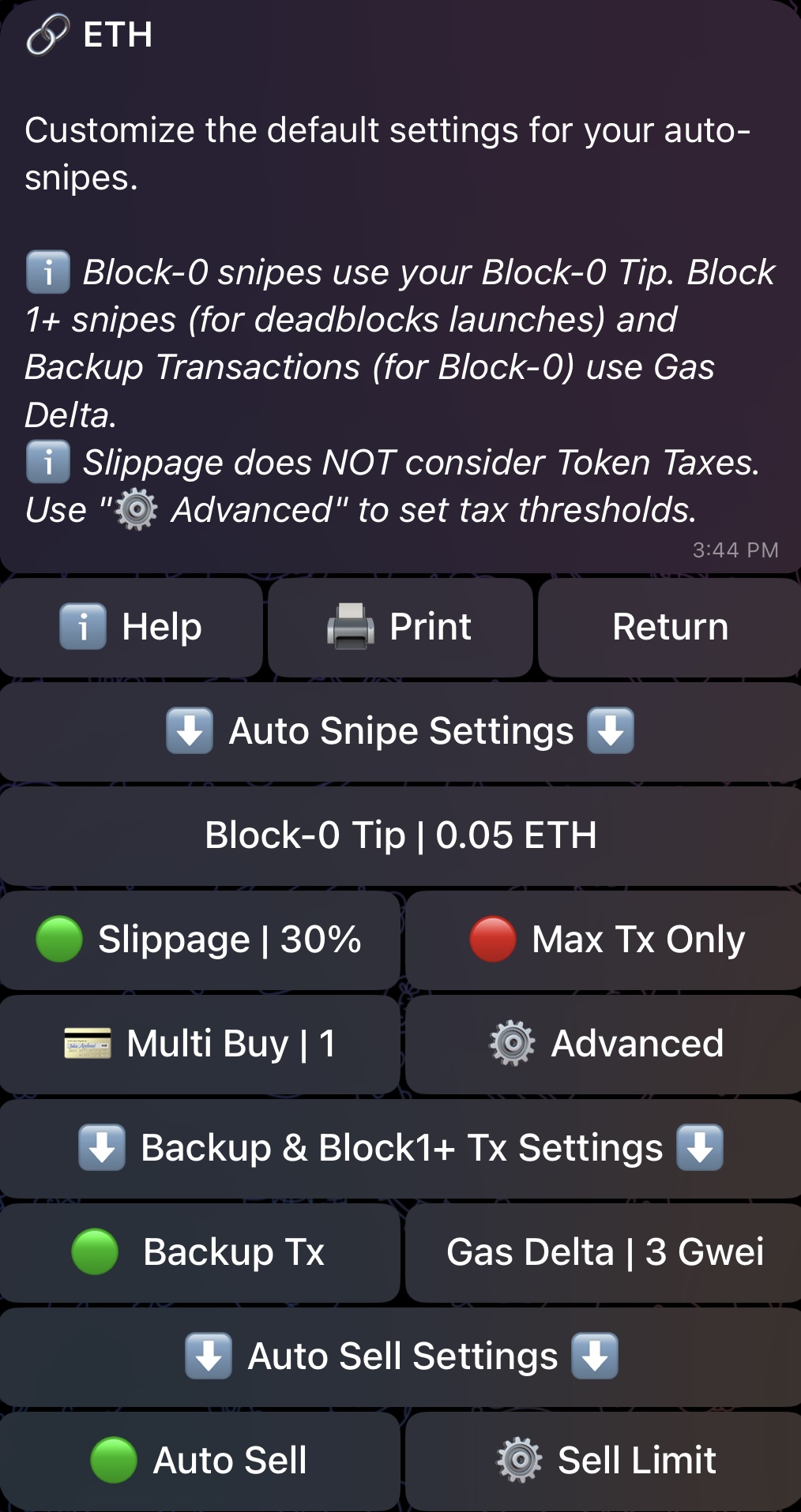
Auto Snipe Configuration - Ethereum
- On Ethereum, a Block-0 snipe is placed right after the launch or target transaction through Block-0 Tipping, and you can enable a backup transaction to secure an entry if the Block-0 snipe does not land. A Block 1+ snipe, after deadblocks or a private launch, is sent without tipping and without a backup. A snipe that waits for a transaction lowering the taxes to your limits counts as a Block-0 snipe.
- On BSC, there is no tipping and no backup transaction. Auto Snipe sends your snipe as soon as it is safe to do so, considering deadblocks and tax limits, so you could end up in Block-0 or Block-1+.
Block-0 Tip
Exclusive to Ethereum This is the ETH tip of your Block-0 snipe: the higher the tip, the better your entry in the launch block. Block-0 Tipping is not activated for Block 1+ snipes. More details on this advanced system can be found here.🟢 | 🔴 Slippage
Choose the slippage to be used for your auto-snipe and for your Backup Transaction when you have the option enabled (Exclusive to Ethereum).🟢 | 🔴 Max Tx Only
If enabled, Auto Snipe will ONLY trigger your auto-snipe if you can afford max TX at the time. If not, then your auto-snipe will be deactivated. This is particularly useful if you’re interested in getting max Tx or nothing.⚙️ Advanced: Block-0 Only
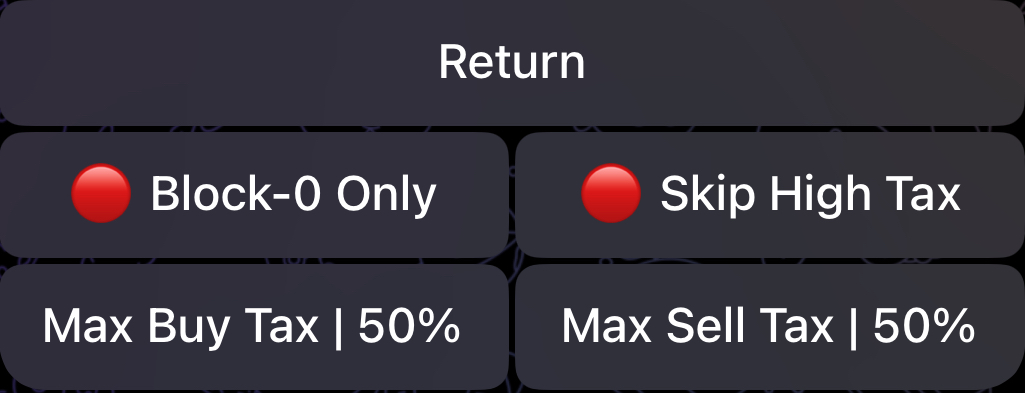
Exclusive to Ethereum and BSC This setting should be enabled if you are ONLY looking for a Block-0 snipe. In other terms, if Auto Snipe is set to trigger on Block-1+ either due to deadblock detections or due to a private launch, then your auto-snipe will not trigger. Please note that if Auto Snipe is waiting for a transaction in mempool that lowers taxes to your set thresholds, then this is considered a Block-0 snipe and your auto-snipe will be triggered normally, even with Block-0 Only is enabled. However, if the tax lowering transaction was sent privately, your auto-snipe would not trigger since this qualifies as a Block-1+ snipe. If you instead wish to completely halt the snipe when the launch taxes are not within your set thresholds, you should use Skip High Tax Launch which is detailed below.⚙️ Advanced: Skip High Tax Launch
If enabled and the buy and/or sell tax of the token at launch did not satisfy your set limits, then Auto Snipe will deactivate your auto-snipe. In other terms, Auto Snipe won’t wait for a transaction that lowers the buy and/or sell taxes to a value that is within your set limits.⚙️ Advanced: Buy and Sell Tax
Through ⚡️Buy Tax and ⚡️Sell Tax, you can set the maximum buy and sell tax that you’re willing to accept for your auto-snipe to trigger. If, at launch, the buy and/or sell tax of the token don’t satisfy your threshold, Auto Snipe will wait for a transaction that lowers the taxes to an acceptable value and then trigger your auto-snipe. Specifically on Ethereum, this is paired with bundling your auto-snipe to the tax lowering transaction along with Block-0 Tipping. This is considered a Block-0 snipe where tipping or bribing is provided to the blockbuilder, and a Backup Transaction is simultaneously sent if you have the option enabled. By default, both ⚡️Buy Tax and ⚡️Sell Tax are set to 50%.🟢 | 🔴 Backup Tx
Exclusive to Ethereum As mentioned previously, Block-0 snipes on Ethereum can be paired with a simultaneous Backup Transaction to guarantee you an entry in case the main bundle fails to go through. This option is ONLY available for Block-0 snipes and hence can only be enabled when Block-0 Tip is also enabled. Backup Transactions can only be mined if the main bundle fails, and could still catch Block-0 if your Gas Delta is sufficiently high.Gas Price/Delta
For ETH, this will be the gas delta used for Block 1+ snipes and for backup transactions. As mentioned earlier, Block-0 snipes will use tipping or bribing and their gas delta will be defaulted to 0.1 gwei. For BSC, this will be the gas price used for all snipes, whether Block-0 or Block-1+. For Block-0 snipes, the bot will automatically ensure that your gas price is not above the gas price of the launch transaction to avoid frontrunning it. As mentioned earlier, there’s no bundling, tipping nor backup transactions on BSC.🟢 | 🔴 Auto Sell
If enabled 🟢, the bot will automatically create the sell limit orders defined in “⚙️ Sell Limit” following an auto-snipe. If Auto Sell is disabled 🔴, no sell limit orders will be automatically added following an auto-snipe, even if you have them defined in “⚙️ Sell Limit”. Initially, “⚙️ Sell Limit” will inherit the same limits defined in your Global Sell Settings, but you can further customize these limits directly from your Auto Snipe Configuration Menu. In such cases, the sell limits specified in the Auto Snipe Configuration Menu will take priority over the ones specified in your Global Sell Settings.Step 2: Add and Activate a Snipe
Add a snipe in either of the two ways described on the Auto Snipe page to open its Auto Snipe Settings. The image below shows the Auto Snipe Settings of a random token on Ethereum. BSC will have a similar menu minus Backup TX and Block-0 Tip which are exclusive to Ethereum.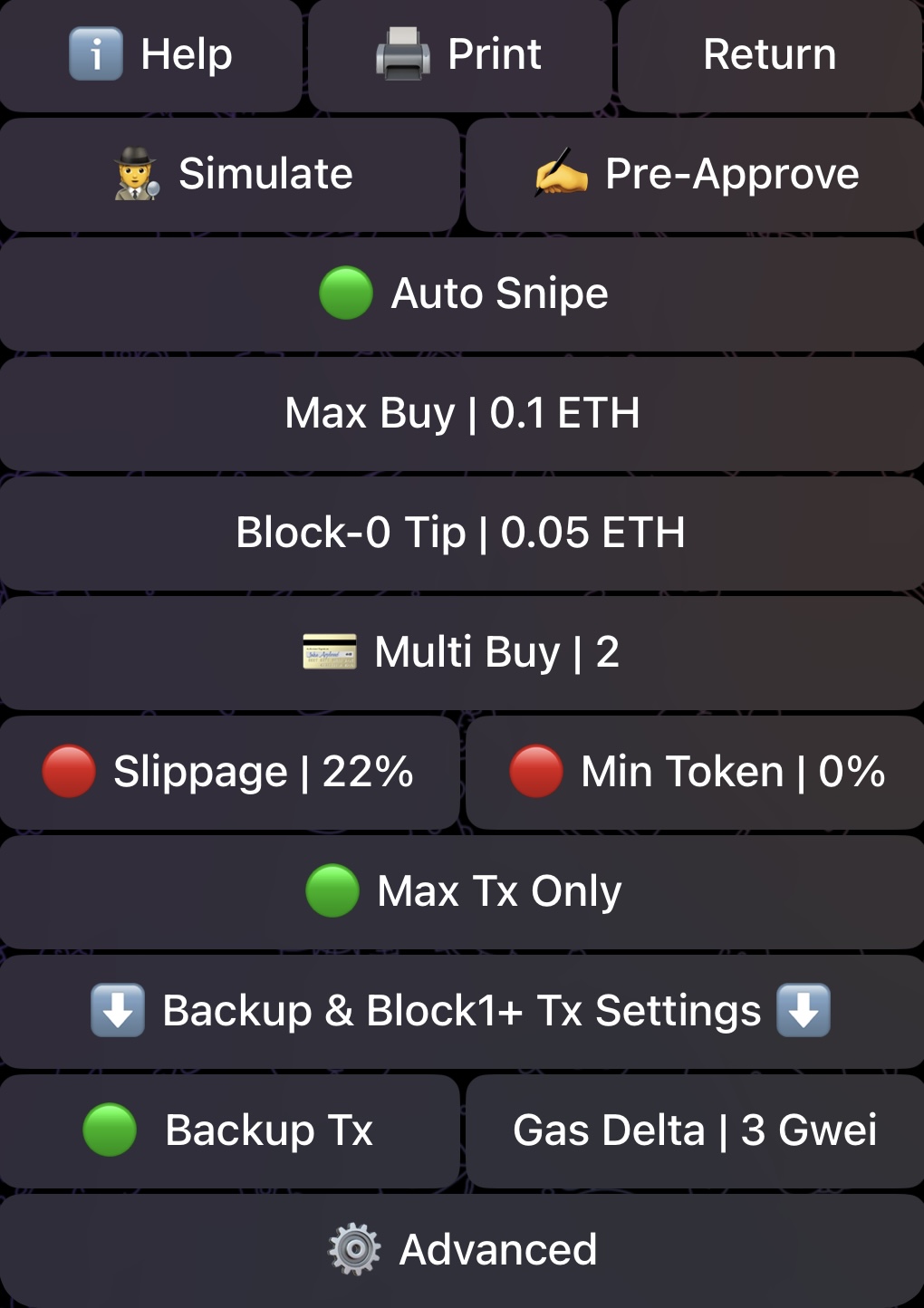
Auto Snipe Settings - Ethereum
Auto Snipe Advanced Settings - Ethereum
🕵️♂️ Simulate - ⭐️ Premium Exclusive
This ⭐️ Premium feature allows you to simulate contract launches directly through the bot. Our launch simulations will automatically identify deadblocks, launch taxes, launch methods, and the contract’s max buy BEFORE launch. This feature is mainly informational as Auto Snipe automatically handles all the above when sniping.Max Buy
This represents the maximum amount (in ETH or BNB) that you’re willing to spend for this snipe. The way Auto Snipe uses this value will be detailed below.Slippage Mode
There are three possible Slippage modes that you can select for an auto-snipe, and you can only enable one of them:- 🟢 | 🔴 Slippage: By default, this will use the Slippage set in your default configuration. Once you enable 🟢 “Slippage”, the bot will prompt you to insert a slippage value in case you’d like to use a different one.
- 🟢 | 🔴 Min Token: Select the minimum percentage of supply (example: 1%) or minimum token amount (example: 1k) that you’re willing to accept for your auto-snipe. Before triggering your auto-snipe, if Auto Snipe notices that you cannot afford this amount with your “Max Buy” then your auto-snipe will be automatically deactivated.
- 🟢 | 🔴 Max TX Only: Works as described under Max Tx Only, measured against your Max Buy.