

0x identifier for a V4 pool) and the bot will resolve it to the underlying token and open the same Token Report. The Token Report provides extensive information about the token contract and allows you to multi-buy, multi-sell, and set up buy and sell limit orders for the token.
In the following figure, we display the Token Report of $CATCHY’s contract address to demonstrate the bot’s capabilities.
.png)
Token Report Buy Menu
📍 Track
Opens a Trade Monitor for the token without buying it. This allows you to monitor your token’s positions in real time for all wallets with a positive token balance. Track works even if you don’t own the token in any of your connected wallets. The Trade Monitor also allows you to multi-buy, multi-sell and set up buy and sell limit orders for the token. We discuss the Trade Monitor in much more detail on the Trade Monitor page.🔄 BSC
If an address has tokens on multiple chains, you can use this button to cycle between the chains.Approve
Exclusive to EVM-compatible chains Sends an Approve transaction for this token. The Approve is sent for the selected wallet if you’re buying in Single Wallet Mode, or for the selected wallets if you’re buying in Multi mode. If Auto-Approve is enabled in your Global Approve Settings, the bot automatically sends an Approve transaction after a successful buy. However, you can approve a token even before you buy it. This is especially useful for pre-launch tokens where one intends to sell quickly after sniping.⇔ Go to Sell
This button switches the menu from buying to selling as displayed in the figure below..jpg)
Token Report Sell Menu
Revoke
Exclusive to EVM-compatible chains Sends a Revoke transaction for a previously approved token for all of your connected wallets.💳 Multi Buy
This button will only appear when “Multi” is enabled and clicking on it will reveal all of your connected wallets for this chain as shown in the figure below. Through this option, you can send buys simultaneously on multiple wallets. Initially, only the wallets enabled for “Manual” in your Wallet Settings are enabled by default, but you can further customize this to select the wallets that you want to participate in any manual buys initiated by this Token Report..jpg)
Multi Buy for Token Report Manual Buys
Single Wallet Mode
When “Multi” is disabled, you are essentially choosing to initiate buys using only one of your connected wallets. The name of this wallet is displayed on a button that will only appear when “Multi” is disabled as shown in the image below. Here, for example, buys will be done using only “Wallet2”.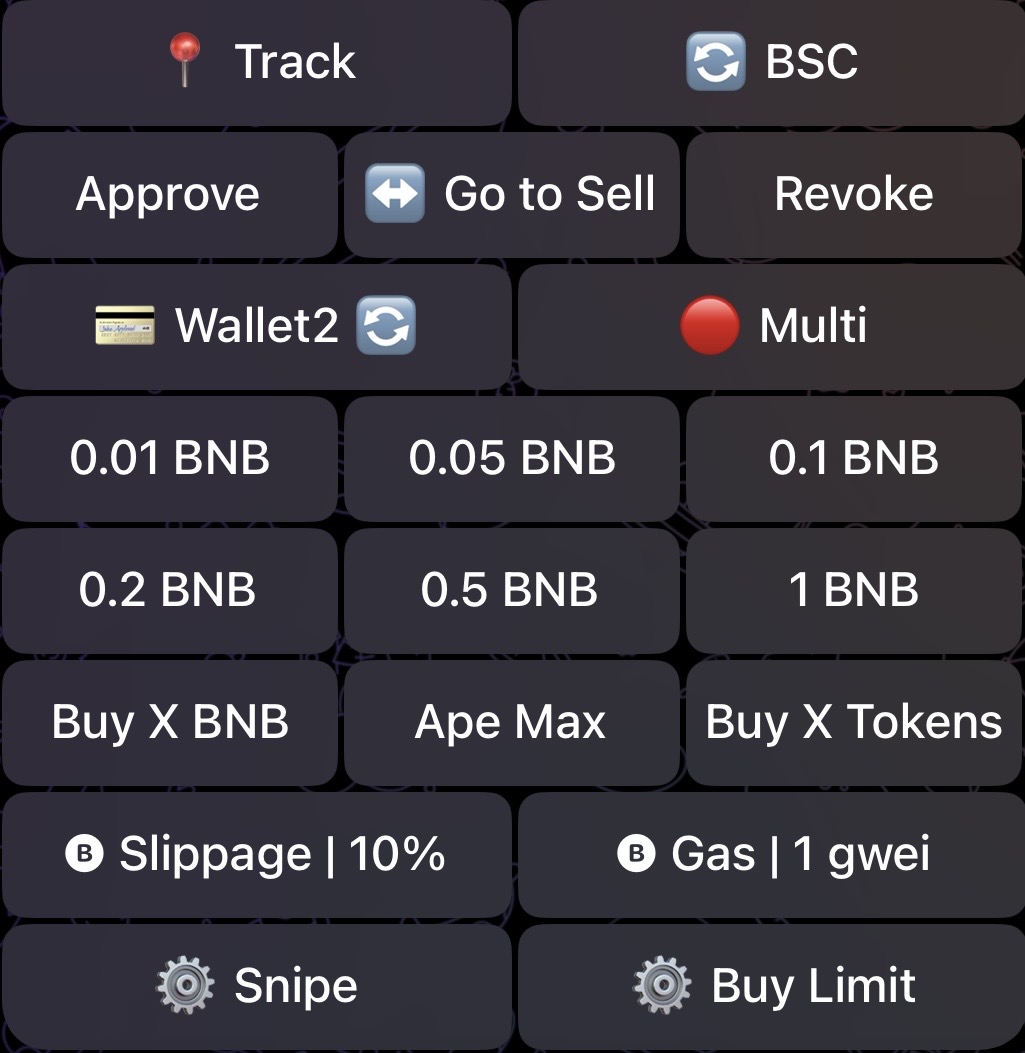
Single Wallet Mode for Token Report Manual Buys
💳 Multi Sell
Similarly to “Multi Buy”, the “Multi Sell” button is a dropdown and clicking on it will reveal all of your connected wallets with a positive balance of the token, as shown in the figure below. Initially, all wallets will be enabled by default in “Multi Sell”, but you can further customize this to select the wallets that you want to participate in any manual sells initiated by this Token Report..jpg)
Multi Sell for Token Report Manual Sells